
Power Apps Studio
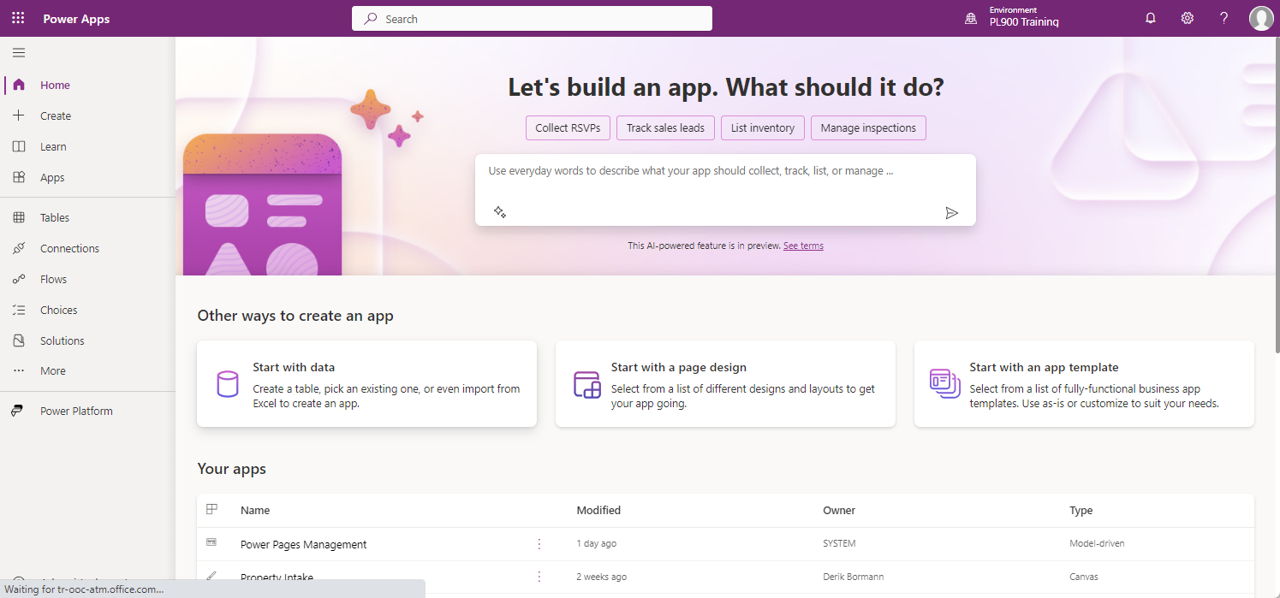
Power Apps Studio is the web interface used to build Power Apps. With Power Apps, there’s no client to download or install for building apps. Everything is done from the browser by logging into https://make.PowerApps.com. Once in Power Apps studio, you can create an app from scratch, or use one of the many different templates available to speed up development of your app.
App format
The first step in creating your app is to choose the format of your app: Mobile or Tablet. While both formats can be used interchangeably on a mobile device, a tablet, or a computer, each has different defaults around sizing of the screens and controls. Once you choose the format for an app, you can’t change it.
Connectors
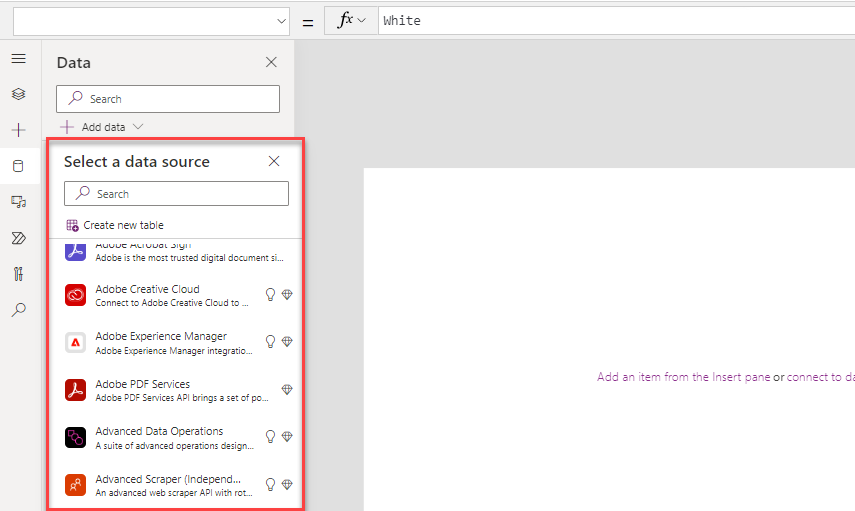
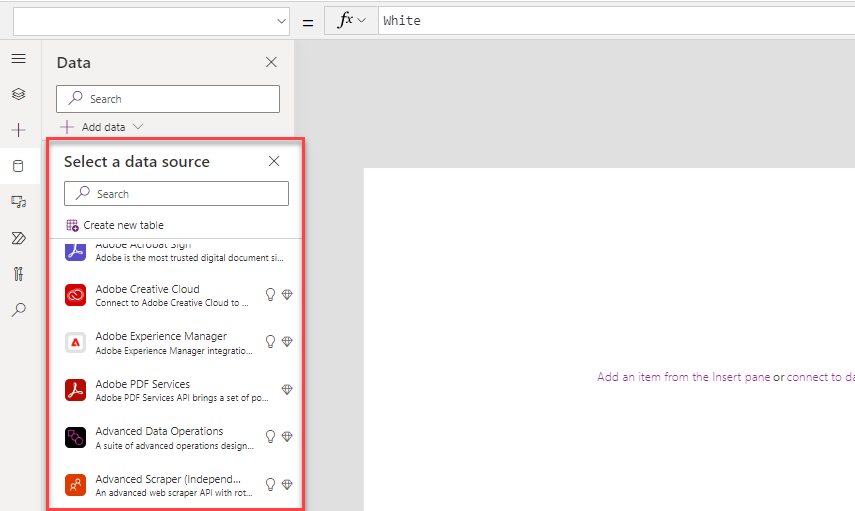
Once you identified the app format you want to use, you need to connect your app to your data. In Power Apps, this step is done using connectors. There are over 1,000 prebuilt connectors available.
Galleries
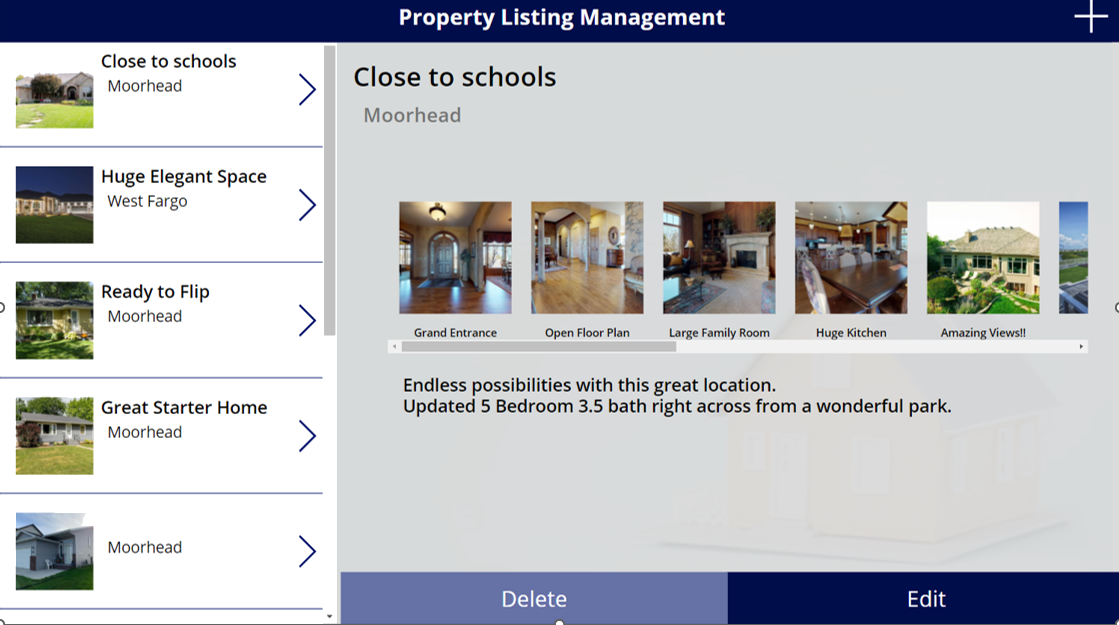
As you build your app, you may encounter scenarios where you need to display a list of records on a screen. In Power Apps, these displays are done with the Gallery control. A gallery displays rows from a table of data. A template defines the display of a row, which you can customize to meet your needs. This process allows you to control which columns are shown and how they’re formatted. Power Apps then applies this template automatically to every row in your data.
Forms
Unlike Galleries, Forms are focused on working with a specific record, often based on a selection from a gallery. In this experience, a user browses a gallery to find and select the desired row to view the details on the form. Forms enable a user to view detailed information, save new records, and edit existing ones. Form modes control the various actions performed with forms, allowing the form to serve many purposes.
Input Controls
To allow you maximum flexibility in customizing your apps, Power Apps has a large selection of Input controls. Text inputs, buttons, dropdowns, toggles, date pickers, and sliders are a few examples. You can add these controls to galleries, forms, and screens to build a functional and aesthetic experience for your app. All inputs have a multitude of settings for default data, formatting, and actions, which allow you to build an app that has the right user experience for your business process.